


WebView Android App
3.37.00 Reviews
App Specs
- Version
- 1.4.5
- Updated On
- License
- Free
- Downloads
- 100,000+
- Developer
- Dream Space
- Categories
- Libraries & Demo
- Platform
- Android
Screenshots

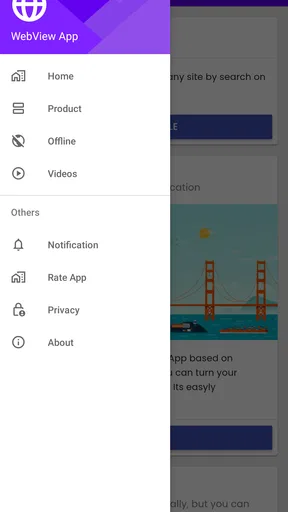
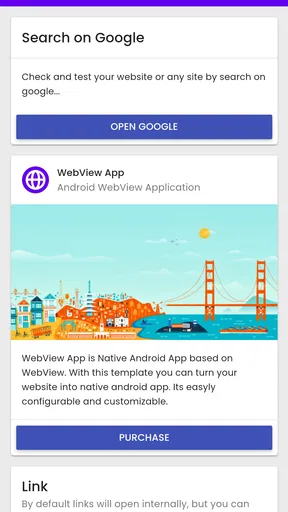
 Analysis by AppCompare
If you’ve ever tried browsing through websites on your Android device using a simple, no-frills app, then you might have come across the WebView Android App. It's like having a mini browser within your apps, but with a more streamlined interface. Let’s dive into what makes this app tick and why it might just be your new favorite way to browse.
A focused way to show web content
The central idea behind this app is straightforward: it is a native Android app built around WebView, the component that lets Android apps display web pages. That makes it useful to think of it less as a full-featured browser and more as a compact place to open web content. The distinction matters. If you want a familiar set of browser tools for managing a long reading list, this is not the same kind of product. If you want a simple route into a page without making browser management the main event, its narrow focus can be a benefit.
In my view, that focused role is the most useful way to judge it. A lightweight web-viewing app can reduce the feeling of switching between separate tools, but it does not automatically improve every page or make a website work better. Its appeal depends on whether you value a direct, minimal experience more than the controls and conveniences built into a dedicated browser. I would decide based on the task I actually do on my phone, rather than expecting the word “WebView” to imply a complete browsing suite.
Getting Up Close with WebView Android App
First off, the WebView Android App is essentially a system component powered by Chrome. It allows Android apps to display web content. So, imagine you’re in an app and it opens a web page within itself instead of launching a separate browser. That’s WebView doing its magic.
The installation is a breeze. Just head over to Google Play Store, search for it, and tap install. Voila, you’re all set. What’s more, it doesn’t take up much space, so you don’t have to worry about it hogging your device’s resources.
Why Use WebView?
Now, you might be wondering, “Why would I use this instead of my regular browser?” Well, WebView is all about convenience and integration. It’s especially handy for developers who want to integrate web content into their apps without redirecting users to external browsers. For the average user, it’s about having quick access to web content without leaving the app you're using. This can be a real game-changer for productivity apps or news apps where content is frequently updated online.
Not to mention, WebView is updated alongside Chrome, ensuring you get the latest security enhancements and features. It’s like having a tiny, secure browser that’s always up-to-date.
Worth Reading Before You Choose

Flipboard Shows What News Apps Must Do Beyond the Feed

Switching to Android Auto Means Rethinking Your Driving Routine

Google Calendar Makes a Crowded Week Easier to Manage

Ludo King Makes the Most of the Minutes Between Plans

Baby Panda World Brings Quick Play to Modern Phones, but Its Game Library Feels Busy

ESPN’s Live Game View Makes Following Close Games Easier
What the workflow feels like day to day
For an ordinary user, the practical question is whether this app gives you a useful place to view web material, not whether you need to understand Android’s underlying components. Dream Space lists it in the Libraries & Demo category, which fits its technical, demonstration-oriented character. It is free, rated for Everyone, and has a 3.3 average from 401 ratings, with 100K+ installs. Those figures suggest some people find a simple WebView example worth trying, while the modest average is a reminder that it should not be mistaken for a polished, all-purpose browser.
A realistic use is checking a web page that you need to consult briefly while keeping your attention on the task that brought you there. For instance, if you are testing an app that displays an online help page, a WebView-based screen can keep the help beside the app experience instead of making the reader think they have left it. The practical gain is continuity, not extra browsing power. If you are only reading a page, the difference may be small; if you are moving between app controls and related web instructions, it can feel more natural.
There is also a useful distinction between opening a page in an app and making that page part of the app’s own interface. In the first case, the page is simply being shown in a contained view. In the second, a developer has designed the surrounding experience so the web material belongs there. As a user, I would not assume that every page shown through WebView has been specially adapted. A site may still feel like a regular website, and its layout, login flow, or controls can determine how comfortable the experience is.
Simplicity at Its Best
One of the standout features of WebView is its simplicity. There’s no clutter, no unnecessary buttons or menus. It’s all about displaying content in the cleanest way possible. This minimalistic approach is perfect if you’re someone who gets easily distracted by too many options.
Moreover, it supports a wide range of HTML5 features, ensuring that modern web applications run smoothly. You can stream videos, play interactive content, or even run complex web apps without a hitch.
Where a minimal view helps—and where it doesn’t
Minimal controls can be helpful when the page itself is the point. If I am looking up one instruction, reading a short announcement, or opening a web-based demo, a stripped-back view keeps the screen focused on the content. The trade-off becomes clearer when I want to manage the page after opening it. A dedicated browser normally puts its browsing tools at the center of the experience; a WebView-focused app is more concerned with presenting a page inside an Android context. That difference is not a flaw by itself, but it changes what I would use each one for.
One practical habit is to treat an embedded web page as a temporary workspace rather than as a place to build a personal archive. If a page contains something I will need again, I would save it through whatever option the page or app provides, or open it in my usual browser if I rely on browser bookmarks and history. That small decision avoids the frustration of returning later and discovering that the convenient in-app route is not where I normally keep my browsing trail.
Another useful check is to notice whether a page behaves like a web page or like an app screen. A page with controls that fit the phone and a clear back route may work comfortably in a compact view. A page that depends on multiple tabs, extensive navigation, or browser-specific tools is likely to feel less at home. I would switch to a regular browser when the task grows beyond a quick visit rather than forcing the minimal setup to do a job it was not designed to handle.
Limitations to Consider
However, it’s not all sunshine and rainbows. Because WebView is designed to be lightweight, it doesn’t come with all the features you’d find in a full-fledged browser. For instance, you won’t get features like bookmark management or extensions.
For those who love tweaking settings and personalizing their browsing experience, this might feel a bit limiting. Also, because it runs within apps, your browsing history might not be as easily accessible as it would be on a standard browser.
Trade-offs, compatibility, and sensible expectations
The main compromise is control. When a website is displayed within an app, the app developer decides how that view is presented and what navigation is available. That can make an in-app page feel tidy, but it also means you may not have the same options you are used to in Chrome or another full browser. If you cannot find a familiar way to revisit a page, change how it opens, or move between sites, that is a sign to use your regular browser for that task rather than treating this as a replacement.
Web compatibility is another reason to keep expectations measured. WebView can handle many current web technologies, but “many” does not mean every website will behave identically in every app. Sites can be designed for different screen sizes and browser features, and a page may be awkward even when the display component is functioning as intended. If a video, sign-in form, or interactive page does not behave well, I would try the site in a full browser before concluding that the content itself is unavailable. That is a practical fallback, not a promise that every issue will disappear.
It is also worth separating the app’s role from the Android component mentioned in the original explanation. The product is a native app based on WebView; that does not mean every other app on the phone depends on this particular download to show web pages. Android’s WebView technology is used in app contexts, while this app is a way to explore or present that kind of experience. Keeping those ideas separate prevents a common misunderstanding: installing this app should not be treated as a universal fix for every web page inside every other app.
Choosing the right tool for a particular task
Compared with a normal browser, this app’s strongest case is simplicity and a contained presentation. A browser is usually the better choice when I need a history I can search, bookmarks I can organize, several pages open at once, or settings I want to adjust. Compared with an app that opens an external browser every time, a WebView approach can keep a brief web visit closer to the original app’s flow. Those are different priorities, so neither option wins in every situation.
For example, imagine I am using a learning or reference app and need to check a linked explanation, then return to the original screen. Keeping the page in an in-app web view can make that short detour feel connected. If I instead spend the evening comparing several sources, saving pages, and moving between searches, I would choose a full browser because its navigation tools matter more than the compact presentation. The useful rule is simple: use the contained view for a focused visit and the browser for an extended browsing session.
For developers, the comparison is different. A WebView can be a practical way to present web content as part of an Android app, while sending every link to an external browser can interrupt the app’s flow. But embedding a page also puts more responsibility on the developer to make navigation understandable and to consider how the site behaves on a phone. A contained screen is not automatically the better design; it is better when the web content genuinely supports the app’s task and users can tell how to move back or continue.
Perfect for Developers
For developers, integrating WebView into their apps can enhance user experience significantly. It’s perfect for apps that need to display web content without redirecting users. You can customize how the web pages look within your app, ensuring a seamless integration that matches your app’s design.
Plus, with Android’s extensive documentation and support, adding WebView to an app is straightforward. It’s a tool that can add immense value without much hassle.
Who is most likely to benefit?
I see the clearest fit for people who want to understand how web content can appear inside an Android app, and for developers who are evaluating a compact embedded-page approach. It can also suit a casual user who values a direct, uncomplicated way to view content and does not expect browser-style organization. The category, Libraries & Demo, is a useful clue for that audience: this is more naturally approached as a focused utility or demonstration than as a daily replacement for a main browser.
I would skip it if your normal browsing depends on keeping many pages, managing bookmarks, using extensions, or changing a broad set of browser preferences. I would also be cautious if you expect every website to feel identical to its experience in a full browser. People who only need their existing browser to open links have little reason to add another route unless they have a specific interest in WebView or want to try this contained style of presentation.
If you are considering installing it, think first about what you want to do after a page opens. For a quick look at web content, a focused view may be enough. For research, repeat visits, or complicated navigation, your regular browser will probably be more comfortable. That expectation makes the app easier to judge fairly: its value is in showing the WebView approach, not in replacing every tool a browser provides.
The app is free, and version 1.4.5 supports Android 6.0 and later. It was released on Nov 7, 2022, and Dream Space is the developer. I would treat those details as practical context rather than a reason to assume a particular feature set: what matters most is whether the app’s WebView-centered approach suits the pages and workflow you have in mind.
In summary, the WebView Android App is a neat little tool that packs a punch in terms of integration and usability. Whether you’re a developer looking to enhance your app’s functionality or a user who appreciates a streamlined browsing experience, WebView is worth considering. It might not replace your main browser, but as a companion tool, it’s unmatched in its simplicity and efficiency.
So, next time you’re exploring apps that require some web content, check if they’re using WebView. It’s a tiny thing, but it makes a world of difference in keeping the browsing experience smooth and seamless.
Pros
- Lightweight and fast loading.
- Supports multiple file formats.
- Easy integration with websites.
- Customizable user interface.
- Offline access to cached pages.
Cons
- Limited advanced features.
- Occasional rendering issues.
- No built-in ad blocker.
- Basic navigation controls.
- Lacks extensive user support.
FAQs for WebView Android App
What is the primary function of the WebView Android App?
The WebView Android App allows developers to display web content within their applications. It essentially functions as a mini browser within an app, providing seamless integration of web pages. This is especially useful for apps that require frequent access to web-based content without needing to switch to an external browser.
Is the WebView Android App safe to use?
Yes, the WebView Android App is generally safe to use, as it is developed by Google and regularly updated to address security vulnerabilities. However, it’s crucial to ensure that apps using WebView do not expose users to malicious content. Developers should always keep the WebView component updated to the latest version.
Does WebView support all types of web content?
WebView supports most standard web technologies, including HTML, CSS, and JavaScript. However, it may not support advanced web features or plugins such as Flash. It’s essential to test your specific content in WebView to ensure compatibility and performance, especially for complex web applications.
How can I update the WebView component in my app?
The WebView component is updated via the Google Play Store as part of the Android System WebView package. Regular updates are rolled out to address bugs and enhance security. Users should ensure their devices are set to automatically update apps to receive the latest WebView improvements.
Can WebView affect the performance of my app?
Yes, the performance of WebView can impact your app, especially if it’s used to load complex or resource-intensive web content. To optimize performance, developers should minimize unnecessary scripts and assets, and consider using a native app solution for highly interactive features. Keeping WebView updated also helps improve performance.


